
This guide explains how to install or update the HakoBio VR app on Meta Quest headsets using SideQuest.
Before installing or updating the HakoBio VR app:
- You have a Windows computer (SideQuest installation and sideloading are not supported on macOS).
- Ensure your Meta Quest headset is activated in developer mode.
- You have a USB-C cable allowing data transfer between your headset and computer.
- You have access to the latest version of the HakoBio VR app.
You can contact us to verify whether you have the latest version or authorized access to the HakoBio VR app.
Get SideQuest application
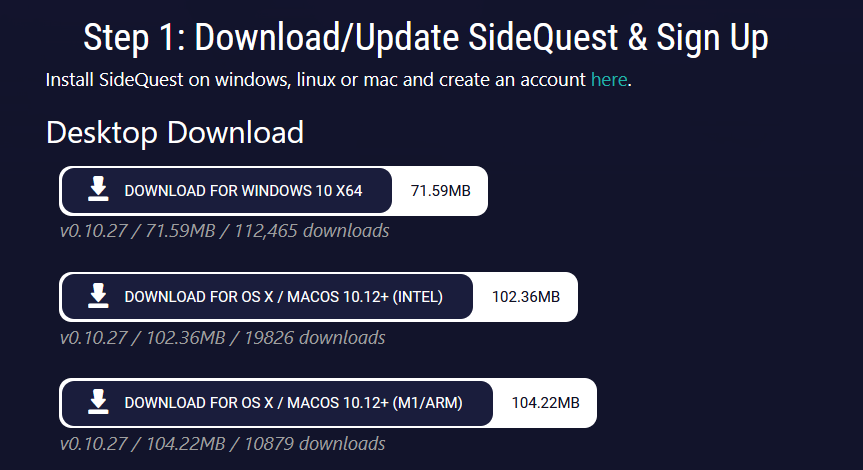
- Visit the SideQuest download page
- Download the Windows version of the desktop application.
- Install SideQuest on your computer.
Install the HakoBio VR App
- Open SideQuest.
- Connect your Meta Quest headset with the USB-C cable. You will need to validate the connection inside the headset to establish full connectivity.
- Check the connection indicator in the top-left corner of SideQuest. It should change from red → orange → green.
- Select Install APK file from folder on computer in the top right corner.
- Upload the latest HakoBio VR app (.apk file).
- Accept any authorization prompts on both the headset and the computer.
- Open SideQuest’s Task Manager to confirm that the installation completed properly.
Update an Existing VR App Version
- Open SideQuest and connect your headset.
- Verify the green connection status.
- Go to Currently Installed Apps.
- Find the existing HakoBio VR app.
- Click Settings → Uninstall to remove the old version.
- Check the Task Manager to confirm the uninstallation.
- Select Install APK file from folder on computer in the top right corner.
- Upload the latest HakoBio VR app (.apk file).
- Open SideQuest’s Task Manager to confirm that the installation completed properly.